Advertise a property
How can I advertise a property?
Whether you are an estate agency or a private seller, you can easily advertise your properties with us. Simply fill out the form using the link below and we will get in touch with you as soon as possible to assist you with the next steps.
How can I add a property manually?
To add a property manually, log in to your control panel and select 'Listings' from the menu on the left. On the right side of the screen, you will find a blue 'Add Property' button. Click it to begin adding your property. Complete as much information as possible at each stage, and when you are done, click 'Publish' on the 'Confirmation' page to finish the process.

Is it possible to take an XML feed from another portal?
Yes, we accept various XML feed types from multiple portals. To check if we can upload from your portal, please email support@thinkspain.com with the portal name and XML URL (if available), and we will confirm its compatibility.
Is my CRM compatible with thinkSPAIN?
Here is a list of the main CRMs we currently work with:
- Inmovilla
- Inmoweb
- HabitatSoft
- Mediaelx
- Artekasa
- SBInmo
- 1001 Portales
- Inmo PC
- Sooprema
- Inmoenter
- Resales Online
- Inmotek
- Inmogesco
- eGO
- InmoFactory (now FotoCasa Pro)
- OnOffice
- Witei
- IAGestion
If your CRM is not on this list, please get in touch by emailing support@thinkspain.com. Include the name of your CRM and the XML URL, if you have it, and we will confirm compatibility.
How can I add a new property if I have an XML service?
If you have an XML service, you will need to add new properties at the source of your XML feed, whether that is your own website or your CRM system.
How can I improve my property's ranking in the listings?
To improve your property's ranking in the listings, it is important to optimise your listing as much as possible. Here are a few tips to help you achieve better visibility:
- Upload as many high-quality photos as possible, with a minimum of 10 images, and avoid using watermarks. For standout property photos, ensure they are sharp and well-lit. Declutter spaces, capture a wide view of each room, and take shots from different angles to showcase the layout and size. Photograph all key areas, including the living room, kitchen, and bedrooms. Be sure to include an image of the property’s front and highlight features such as pools, gardens, balconies, or views.
- Provide a detailed description in your preferred language, and the system will automatically handle translations into all supported languages.
- Ensure you have selected the correct location and property type.
- Select all relevant features when adding your property in the Control Panel, such as pool, terrace, sea view, etc.
These tips can make your listing more appealing and help it rank higher in search results, increasing your chances of receiving leads. Additionally, consider featuring your property, as these listings appear at the top of the results.
What is a featured property?
A featured property is a promotional option that increases the visibility of your listing beyond a standard advert. There are two types: the standard featured property, which appears more frequently in search results for your area, boosting its chances of being seen and generating more enquiries, and the premium featured property, which gets an even greater boost in search results and additional exposure. Both options are designed to enhance visibility and engagement with potential buyers or renters.
How can I feature a property?
You can view the available packages and select the one that best suits your needs by clicking this link: Feature Property Listings. Alternatively, this option can be found in the left-hand column of your control panel under 'Feature Your Property'.
To select the properties you want to feature, log in to your control panel and follow these steps:
Select 'Listings' from the menu on the left to view your properties. If you are looking for a specific property, use the 'More filters' option to search by the thinkSPAIN reference number. You can find this reference number in the property URL, below the contact form on the website, and under ‘ID / Reference / Price’ in ‘Listings’ section of your Control Panel.
Under the 'Featured' column next to each property, you will see one of the following options, depending on your services:
‘Upgrade to Featured’ – This option appears if you don’t currently have any featured services contracted. Click here to view the available packages and prices. Then, click on 'Contract' to submit a request and we will contact you to initiate the purchase process.
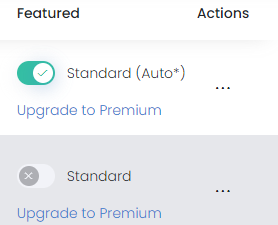
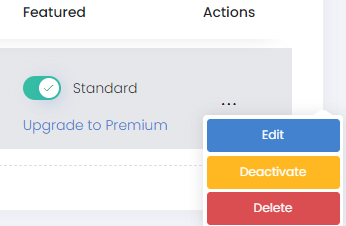
Grey/Green Button with the word ‘Standard’ – If you have other featured properties, you will see a grey or green button. A grey button means the property is not currently featured, while a green button indicates it is. To feature a property, click the grey button, and it will activate the featured service for that listing. You will also see an “Upgrade to Premium” option here.
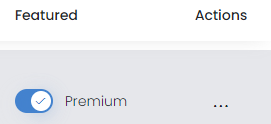
Grey/Blue Button with the word ‘Premium’ – If you have other properties with premium service, you will see a grey or blue button. A grey button indicates the property is not featured, while a blue button shows it is. Click the grey button to activate the premium featured service for that listing.
What are Branded Property listings?
Branded Property Listings show your logo and name on the property details page to promote your brand and build buyer, renter, and seller trust. We also show information from your business profile and link to it.
How can I brand my property listings?
Call us on (+34) 96 065 31 15, send an email to partners@thinkspain.com, or use this contact form (you may need to log in first). Provide your thinkSPAIN client ID, and we will guide you through the next steps.
Is the description of my property automatically translated to other languages?
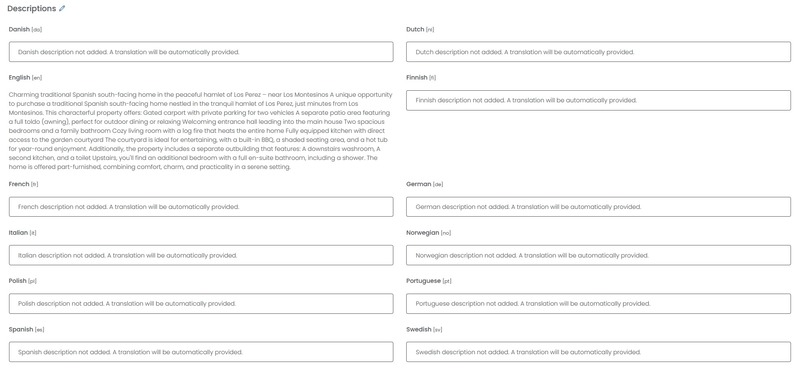
Yes, your property description is automatically translated into all 12 languages available on thinkSPAIN. You only need to enter the description in your preferred language when adding or editing a property.
Our system will then generate professional AI-powered translations for the remaining languages. These translations are displayed on your property’s detail page, allowing international users to view your listing in their own language.
Only the original description you provide appears in the confirmation tab of your control panel; translated versions are visible on the live site.
How can I edit the details of a property?
To edit a property with a manual service, log in to the control panel and select 'Listings' from the left menu. Locate your property in the list, or use 'More filters' to search by the thinkSPAIN reference number (found in the URL), then click 'Apply Filter.' Once the property appears, click the three dots under 'Actions' and select ‘Edit’ from the pop-up menu. After making the changes, go to the ‘4. Confirmation’ tab, scroll down, and click ‘Save’ to complete the process.
If you have an XML feed, you will need to edit the property at the source of your XML feed, whether that is your own website or your CRM.
How can I remove a property?
To delete or deactivate a property with a manual service, log in to the control panel and select 'Listings' from the left menu. Locate your property in the list, or use 'More filters' to enter the thinkSPAIN reference number (found in the URL) in the ‘thinkSPAIN ID’ field and click 'Apply Filter.'
Once the property appears, click the three dots under 'Actions' on the right of the listing. A small pop-up menu will appear, select 'Deactivate' to place the property offline but retain the property data for possible reactivation or 'Delete' to completely remove the property from our database.
If you have an XML service, you will need to delete the property at the source of your XML feed, whether that is your own website or your CRM.
My Control Panel account
How can I access the control panel?
You can access the control panel either via the link provided in your login details email or by visiting our website and selecting 'Advertiser Login' under ‘Help & Advice’.
Alternatively, you may use this direct link: client.thinkspain.com.
Where can I find my client ID and password?
Your client ID and password can be found in the email sent when you activated your service. If you are unable to locate this email, please contact support@thinkspain.com, and we will resend the details to you.
Where can I see the performance of my properties?
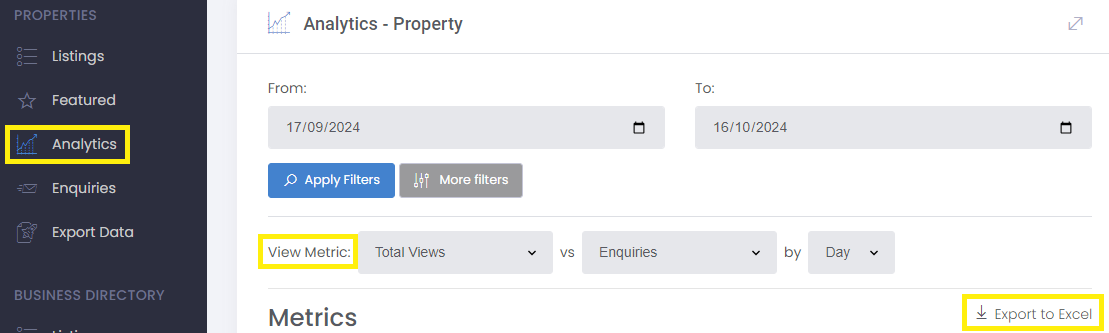
In the Client Control Panel, access performance data by selecting 'Analytics' under 'PROPERTIES' in the left-hand menu. Use the available parameters to extract the data you need.
How do I export my Analytics to a spreadsheet?
To export your Analytics data to a spreadsheet, log into the control panel and select 'Analytics' from the left-hand menu. Adjust the date parameters if necessary, click the grey 'More Filters' button, and enter your search data. Ensure the 'View Metric' you want to see (such as Total Views, Search Results Views, Detailed Views or Enquiries) is selected. Then, click the blue 'Apply Filters' button to display the results in graph form. To download the document, click the 'Export to Excel' link on the right of the Analytics page.
Where can I see the enquiries in my control panel?
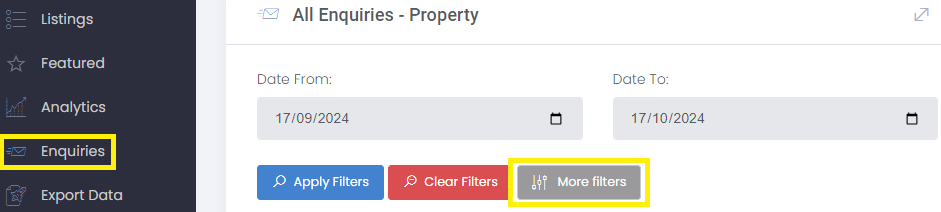
To view your enquiries, log in to the control panel and select 'Enquiries' under 'PROPERTIES.' Set your desired date parameters and apply any additional filters by clicking 'More filters.' For instance, you can search for enquiries related to a specific property by entering its thinkSPAIN reference number. Once you have set your filters, click 'Apply Filters' to view the results.
How do I create an XML feed from my thinkSPAIN properties?
To create an XML feed from your thinkSPAIN properties:
- Log in to the Client Control Panel and select 'Export Data' under 'PROPERTIES' in the left-hand menu.
- Click the blue 'Create XML' button in the top right corner.
- Choose a name for your feed and click 'Create.' You will receive a confirmation message, and your feed will appear on the page.
- Copy the link and share it as needed.

Where can I see and download my invoices?
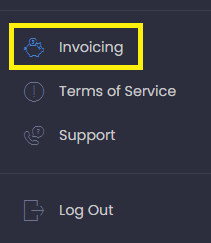
You can view and manage your invoices in the Client Control Panel. Simply log in using your login details and select 'Invoicing' from the menu on the left-hand side. For each invoice you need, click on the three dots next to it and choose your preferred option to download or print.
How can I change my password?
To change your password, please contact Customer Support at (+34) 96 065 31 15 to request a password reset.
How can I change my bank account number or payment method?
To update your payment method or bank account details, please call Customer Support on (+34) 96 065 31 15 or send an email to support@thinkspain.com. Be sure to include your username and the IBAN of the new account. For security reasons, we strongly recommend not sharing credit card details through email or WhatsApp.
How can I update the phone number or email address where I receive enquiries?
To update the phone number or email address where you receive enquiries, please call Customer Support on (+34) 96 065 31 15 or send an email to support@thinkspain.com, and provide your new contact details.
How can I cancel my service?
To cancel your service, please email support@thinkspain.com with your cancellation request. Be sure to submit your request before the next scheduled invoice is issued.
How can I add my WhatsApp as an additional contact option for buyers?
To add a WhatsApp number as another form of contact for buyers to reach you, please call Customer Support on (+34) 96 065 31 15, send an email to support@thinkspain.com, or use this contact form (you may need to log in first). Provide your username and the WhatsApp number you’d like buyers to contact you on. We’ll add it to your profile for you.
Add your business to the directory
How can I add my business to the directory?
If you’re a business offering property or living-in-Spain-related services, such as an estate agent, solicitor, tax advisor, architect or similar, you can apply via our Directory Sign-Up Application.
If you’re already a thinkSPAIN customer, you can now also add your business directly from your Client Control Panel. Simply log in and go to the “Business Profile“ section in the burger menu. Select the blue “Create Business Profile“ button and fill in your business' information.
Is it free to add my business to the directory?
Yes, it’s completely free to add your business to thinkSPAIN’s business directory. Your free listing includes a professional profile with your logo, contact details and description, plus if you’re an estate agent, a one-click access to all your properties listed on thinkSPAIN.
For increased visibility and a more prominent profile, you can also choose to upgrade to one of two featured tiers; Business Pro or Pro+Banner. These offer priority placement, a more visual display, and additional exposure across the site with a prominent banner in the property search results (Pro+Banner only).
How can I modify my business’ information?
Log into the Client Control Panel and select 'Business Profile' under 'Business & Brand' in the left-hand menu. Your profile will appear, and will have different buttons on the right: Choose the 'Edit' button. You will then be able to navigate through various tabs: 'Details', 'About Us' and 'Logo'. Update the necessary information, and once you have reviewed everything on the 'Confirmation' page, scroll down and click 'Save' to finalise the updates.
List a job vacancy
How can I list a job vacancy on thinkSPAIN?
To list a job vacancy on thinkSPAIN, please visit our Job Advertise page. Fill in the registration form with the details of your vacancy and submit it. Our team will review your submission and ensure it is published promptly. If you have any questions or need assistance, feel free to contact us at jobs@thinkspain.com.
How can I edit or remove my job advert?
To edit or remove your job advert, please contact us at jobs@thinkspain.com. Please include the reference number (found in the URL) of the advert and specify your request.